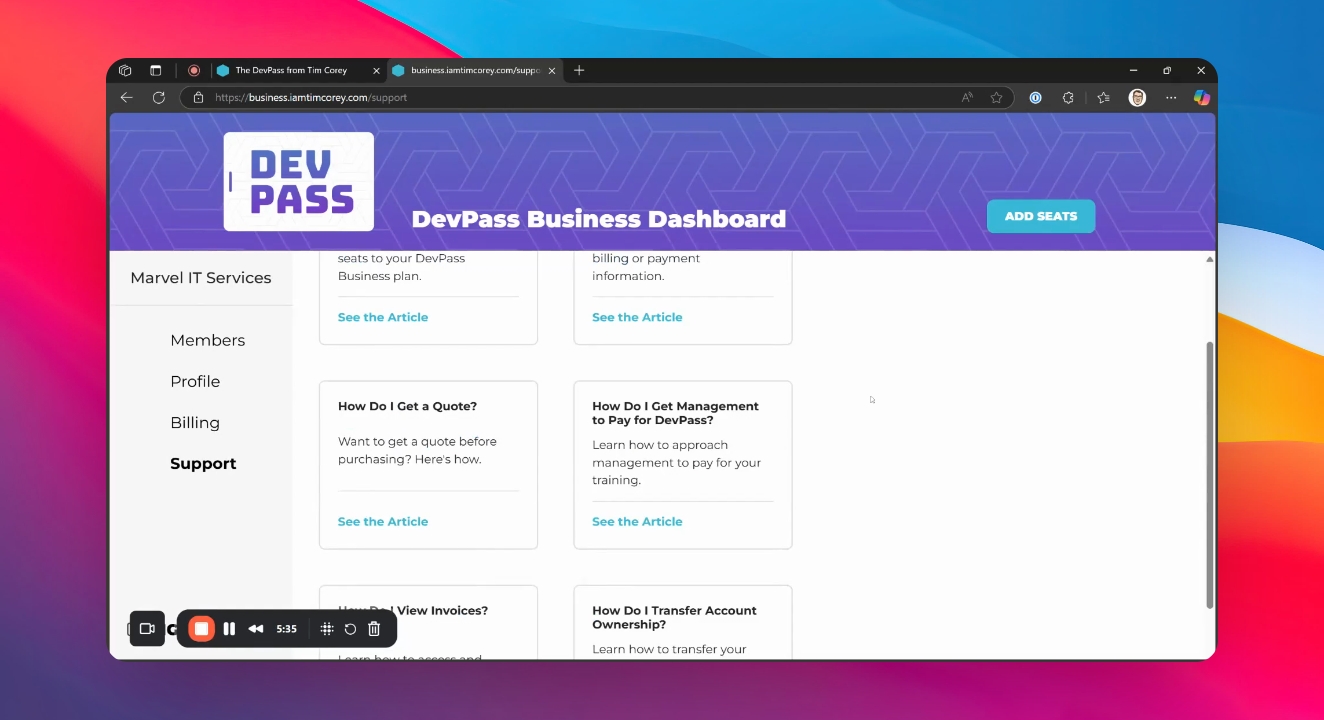

This guide walks you through purchasing and managing seats with DevPass for Business. Let's look at the steps:
Step 1: Go to the Start Here Link
Navigate to the Get Started link to access the landing page for DevPass for Business.
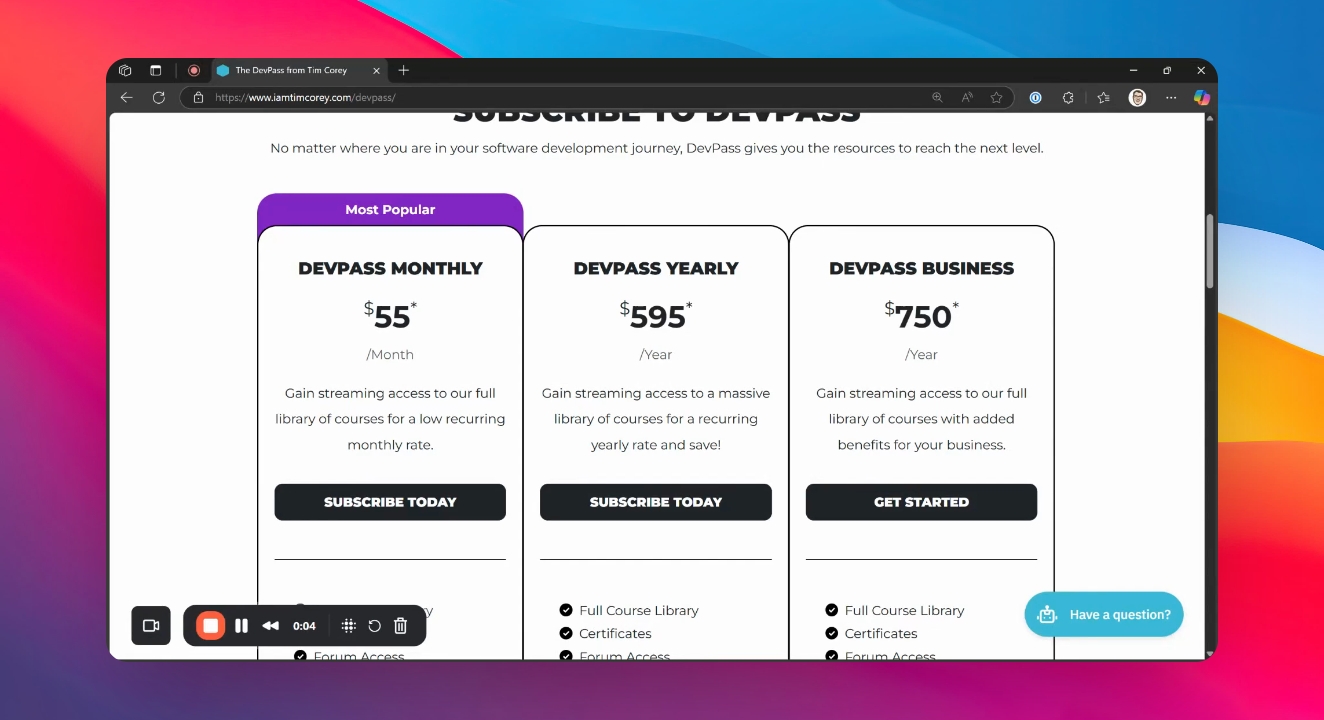
Step 2: Begin Your First Purchase
If this is your first purchase, click the Continue button under New Here? and create a new Dashboard account. This account is separate from any course account you may have and is required to make the purchase.
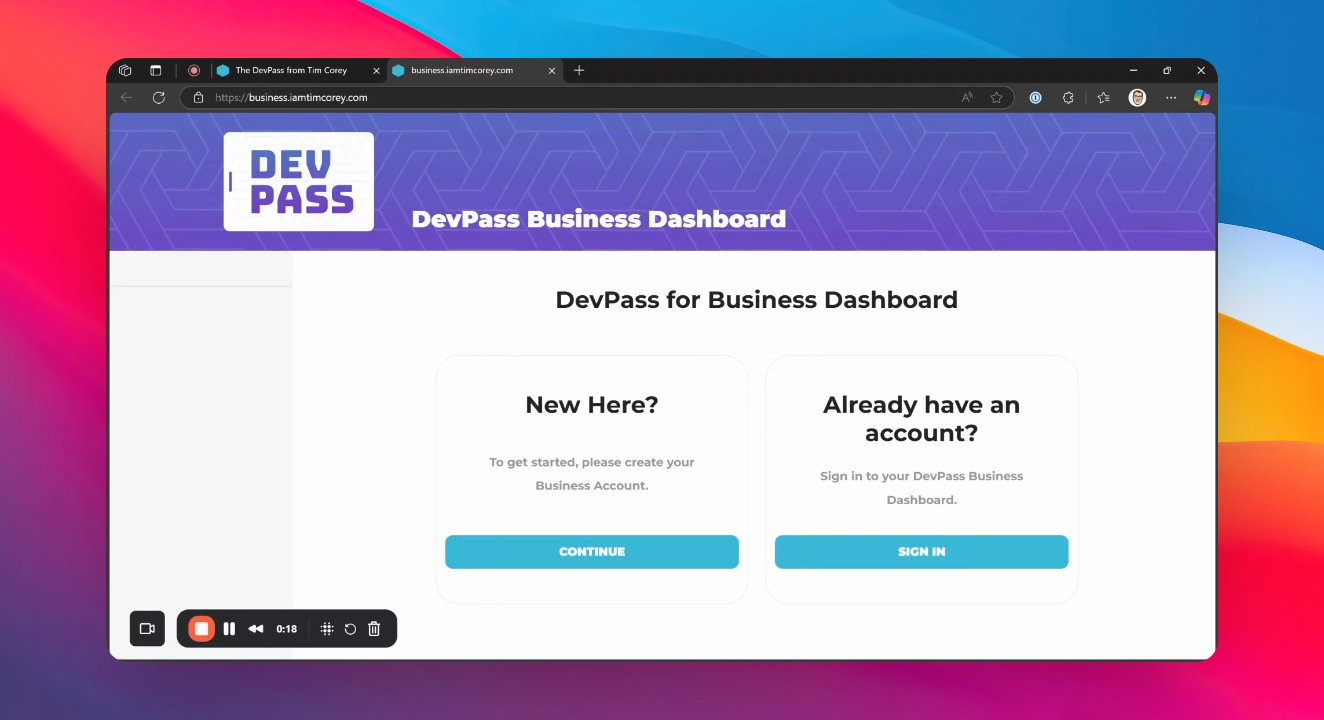
Managers can not access courses directly from the Dashboard. The Dashboard is designed for monitoring your team's progress.
Step 3: Sign In to Your Account
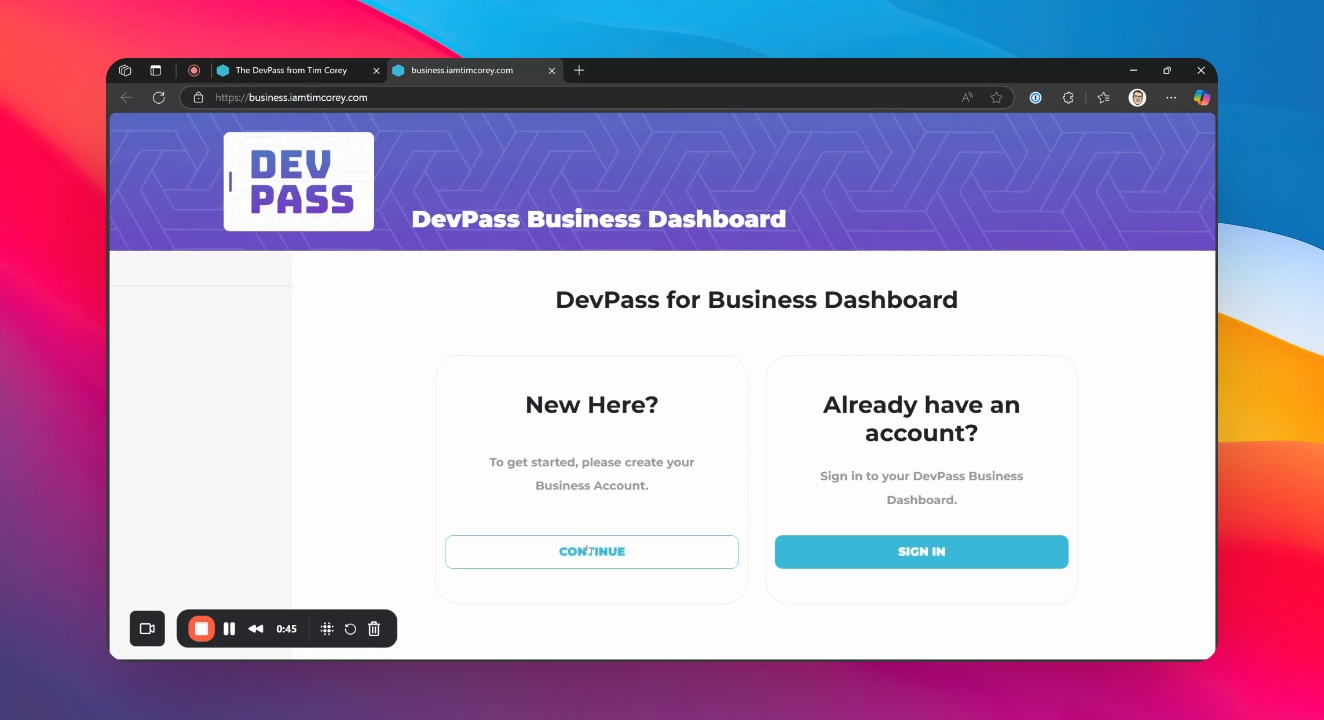
After creating your account, sign in to access the Dashboard landing page. You will land on the Members page. From this page you will be able to purchase seats.
Step 4: Review Purchased Seats
On the Members page, review the seats (subscriptions) you have already purchased. If you are new, then there will be no seats listed.
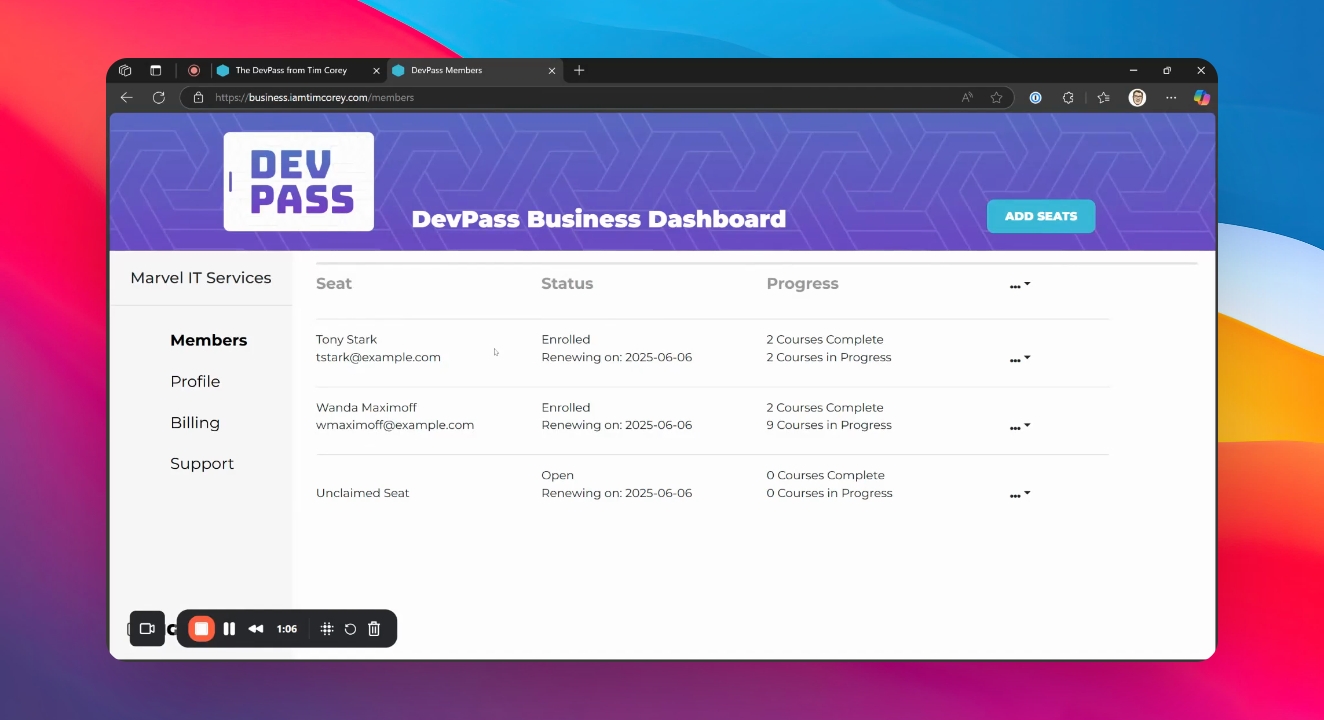
Step 5: Add Seats
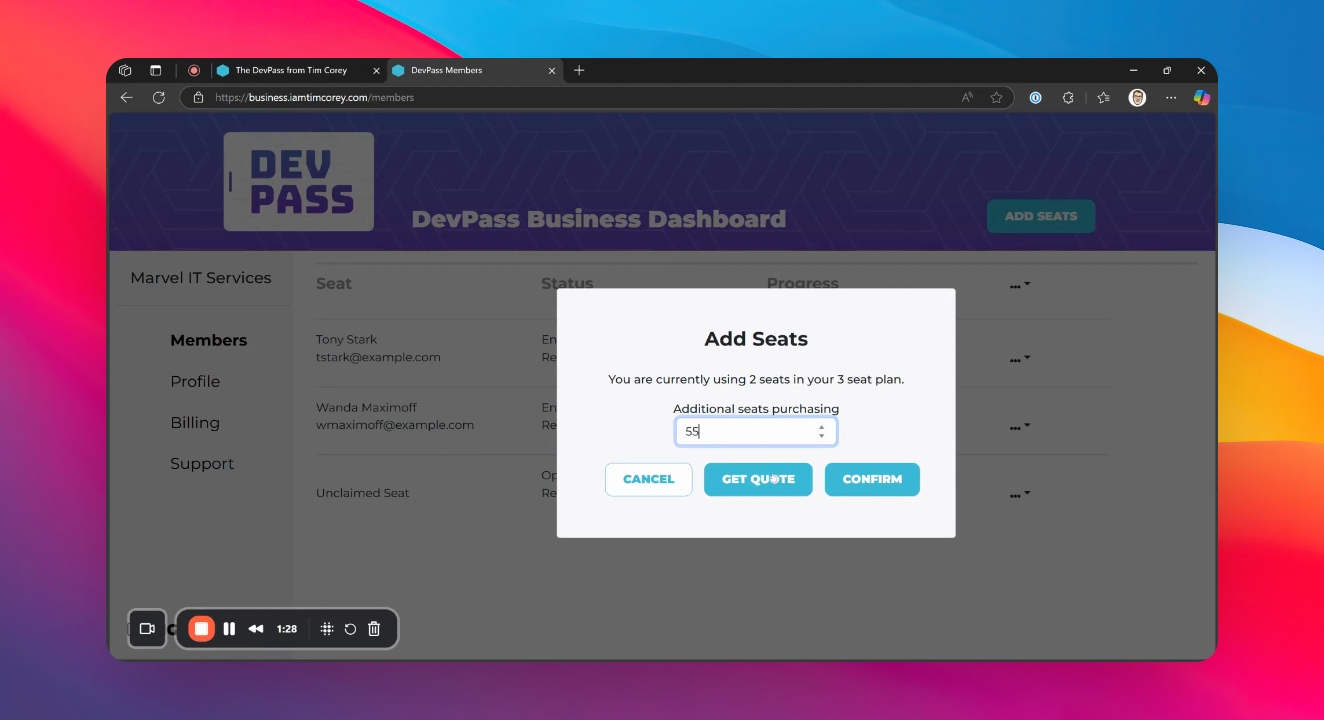
If this is your first visit, click Add Seats. Select the number of seats you want to purchase.
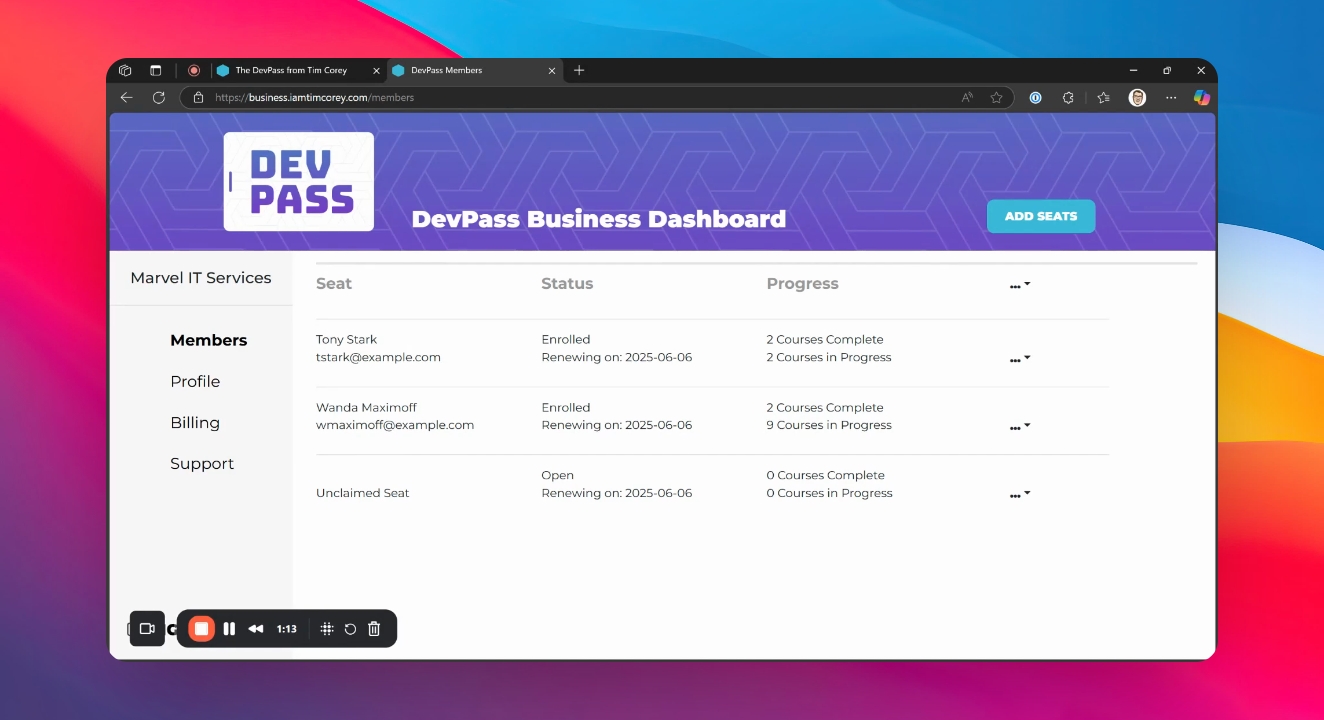
Step 6: Get a Quote or Complete Purchase
Choose to get a quote or complete the purchase directly. If you request a quote, you will receive a document in your email that you can forward for approval.
Step 7: Assign Seats to Employees
When new seats are purchased, they appear as unclaimed. Assign them to employees by clicking the ellipse, selecting Assign Seat, entering the name and email address, and clicking Send Invitation. The employee will receive an email to complete enrollment and gain course access.
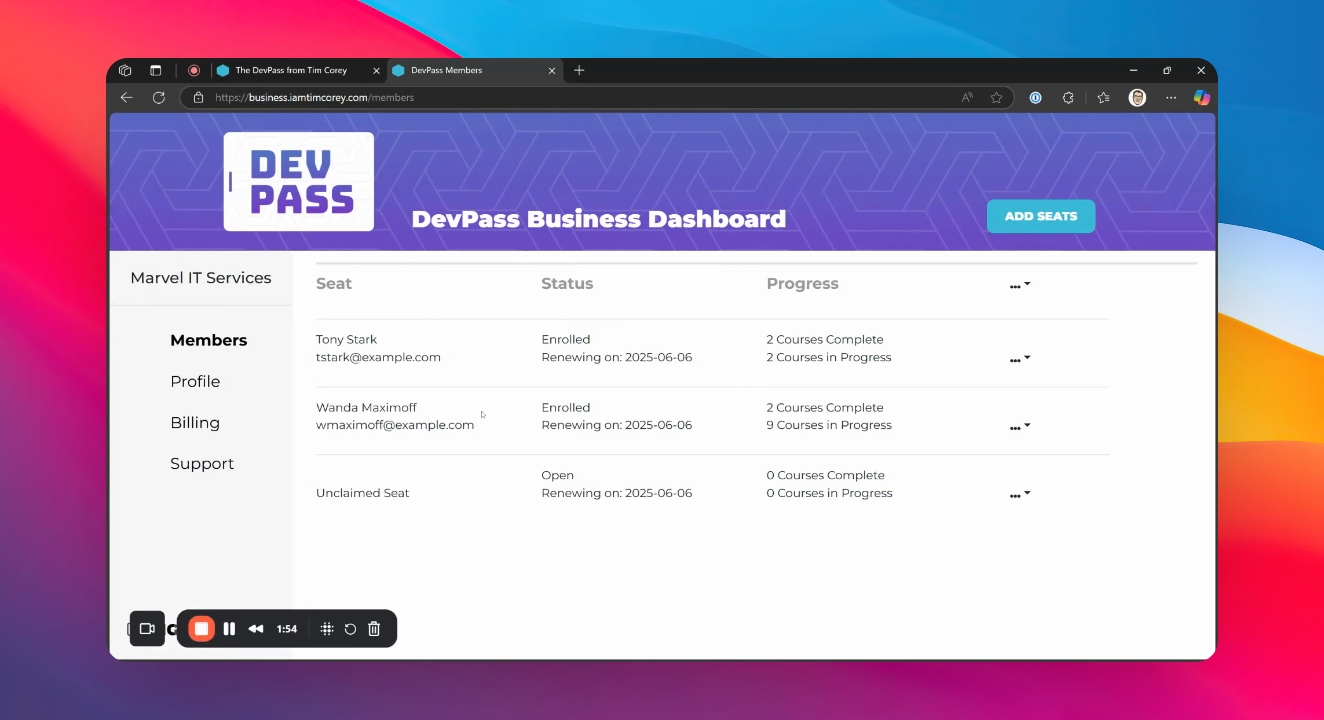
Additional Dashboard Capabilities
Reassign Seats if Needed
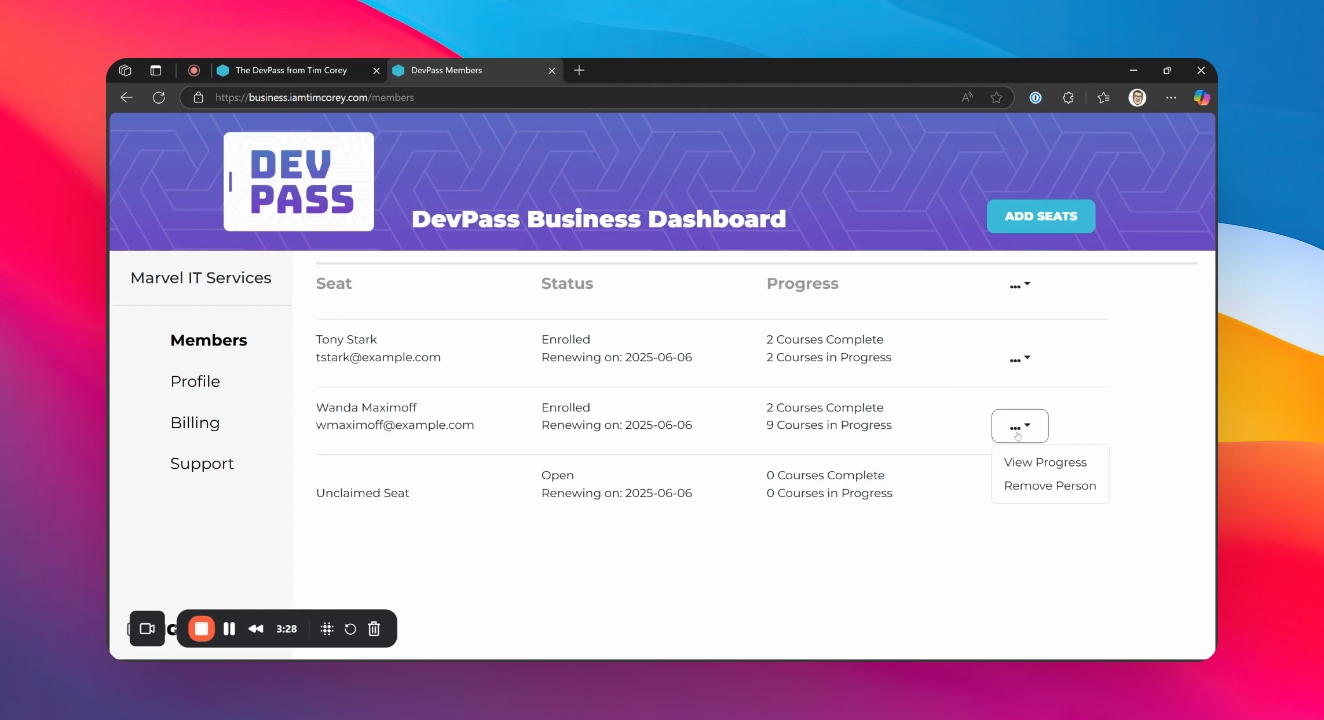
If an employee no longer needs their seat, click the ellipse (...) and select Remove Person, and confirm the removal. You can then assign the seat to someone else.
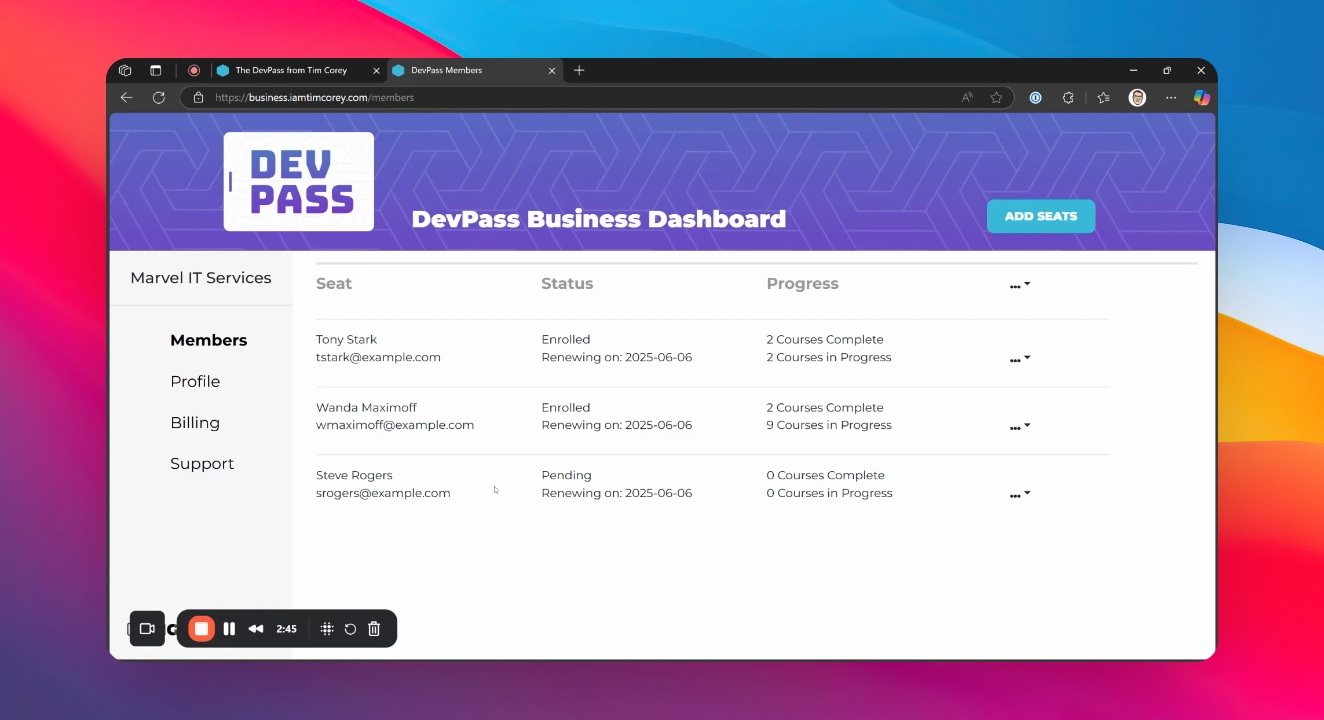
Assign a Seat to Yourself
If you purchase only one seat for yourself, you must still assign it to yourself, just like any other student.
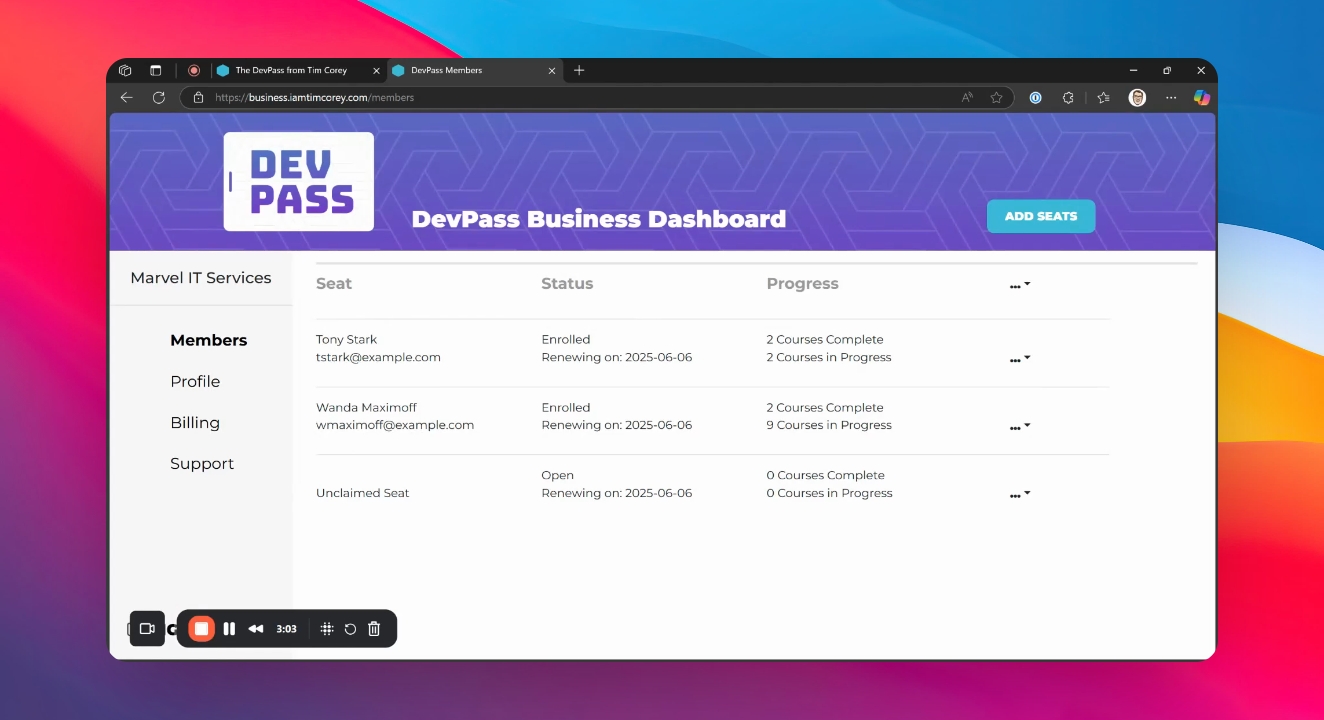
Monitor Team Progress
Use the Dashboard to view each team member's course progress, including completed and in-progress courses.
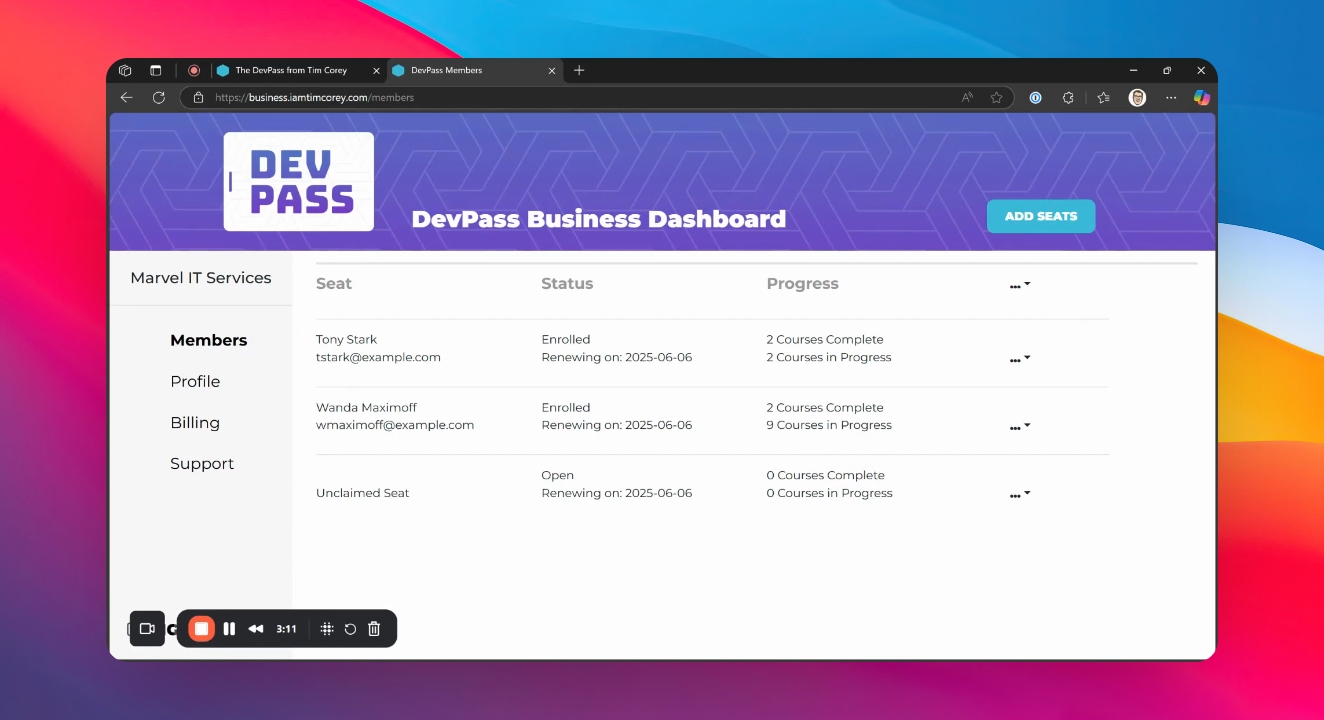
View Individual Progress
To see more details for a team member, select View Progress from the ellipse next to their name. This displays their active courses.
Experienced team members may use courses as reference material, and likely show several courses as "In Progress". A less experienced developer may need to fully complete courses. Adjust your coaching/guidance based on each individual's needs.
Assign Specific Courses
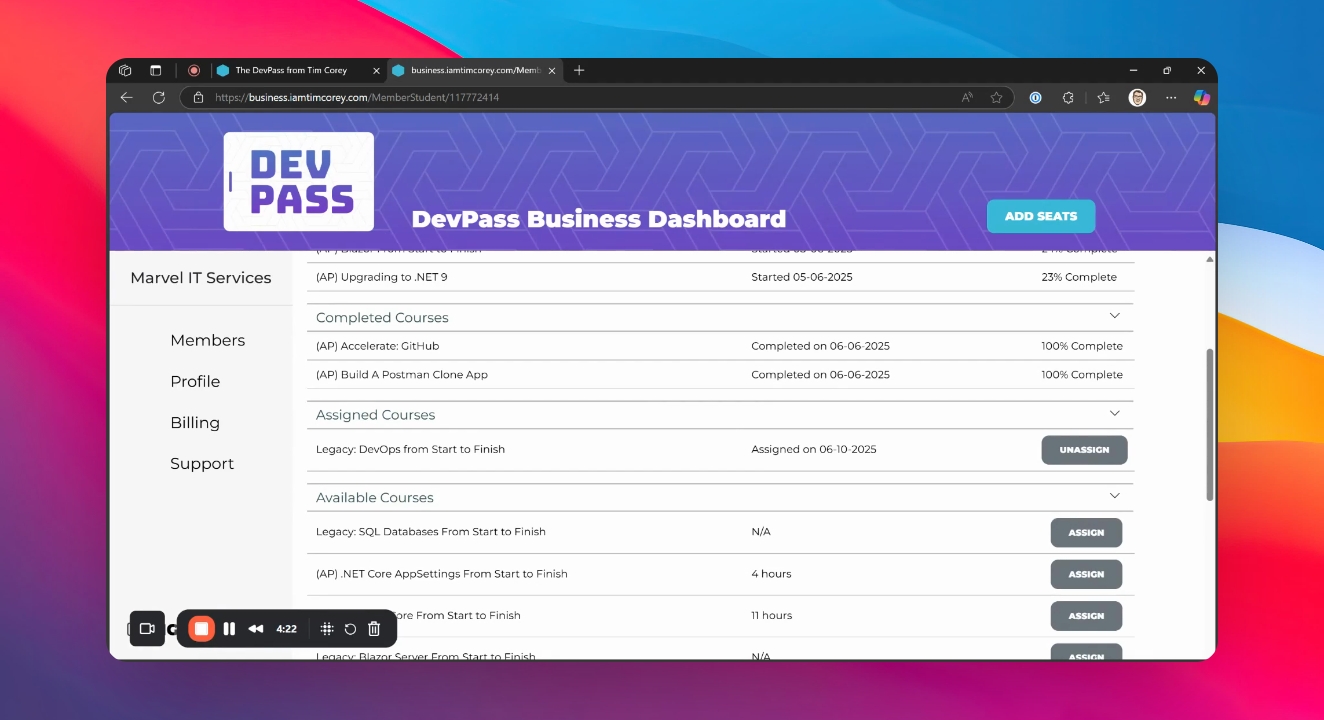
You can assign specific courses to team members, if you wish to take an active role and guiding the employees training. Identify the course and click Assign. They will receive an email notification to make them aware of the course you want them to focus on.
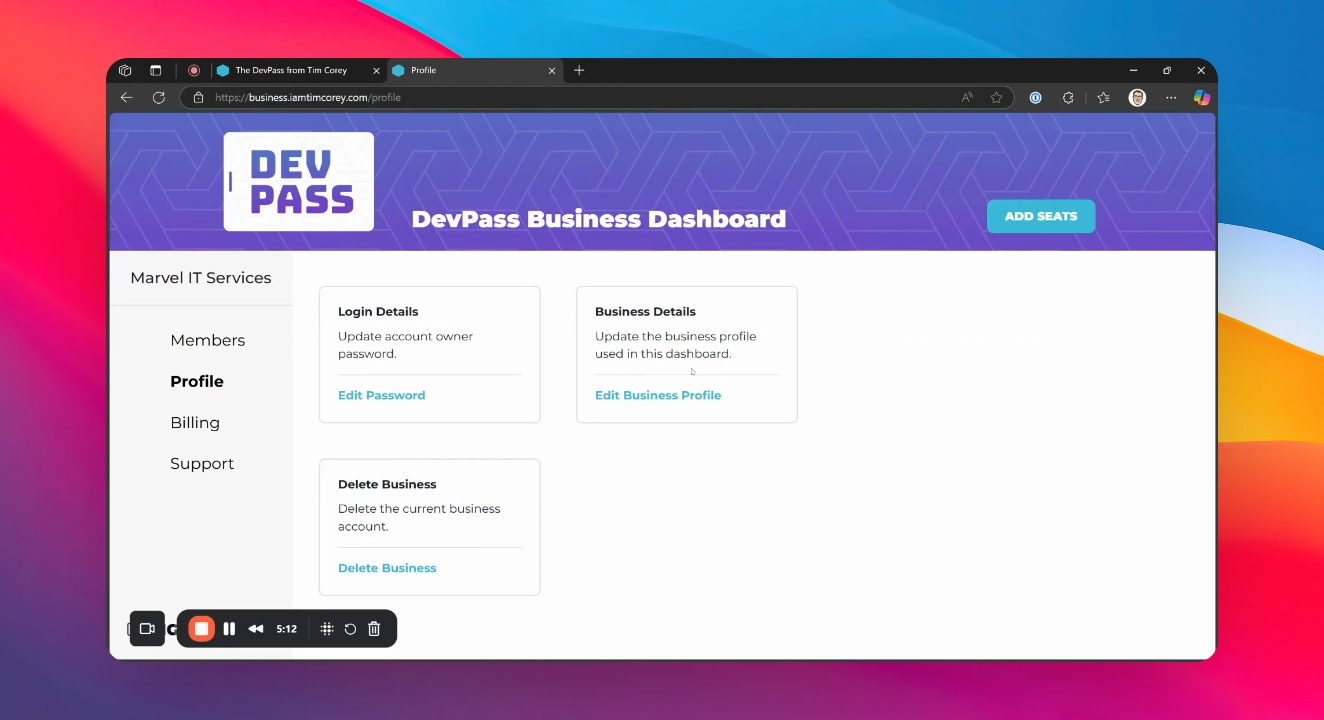
Update Company Profile
On the Dashboard's profile page, update your company's information as needed.
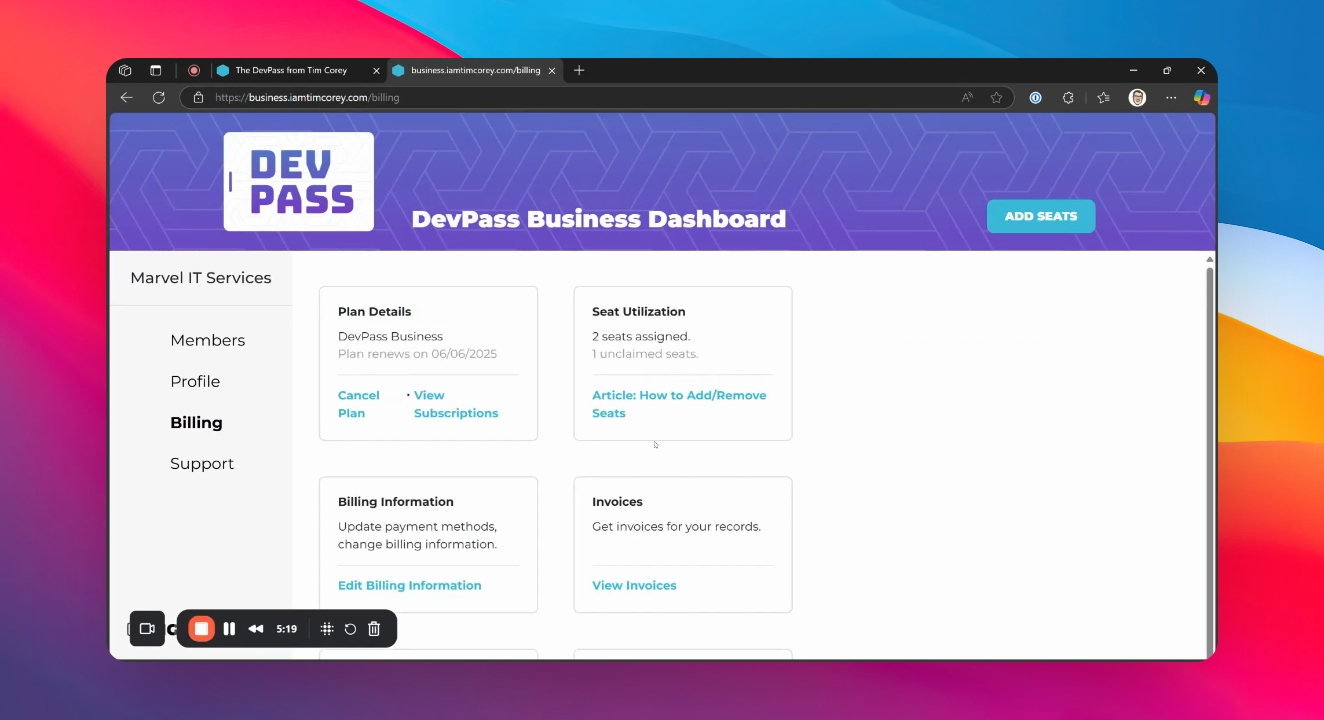
Manage Billing Information
Access the billing page within the Dashboard to update payment details, review invoices, and check subscription due dates.
Use the Support Page
Visit the support page for articles and guidance on using the Dashboard and managing your account.